Logging in (Přihlášení)
- Open the homepage. The login box (Email, Heslo) is on the right side of the top section (on a phone, at the top).
- After login you go straight to the planner you used last, showing today.
- If you don't have any planner yet (and nobody shared one with you), you land on Vytvořit plánovač (create planner).
- Already logged in? The homepage shows an Otevřít plánovač (open planner) button instead of the login box.
- When logged in, the top menu shows a Plánovač link. It opens your last used planner.
- Forgotten password: use the link under the login button.
- No account yet? Under the login box, click Registrace (below “Ještě nemáte účet?”) to open the registration page. You need an account before anyone can share a planner with you.
Day board (Denní plán)
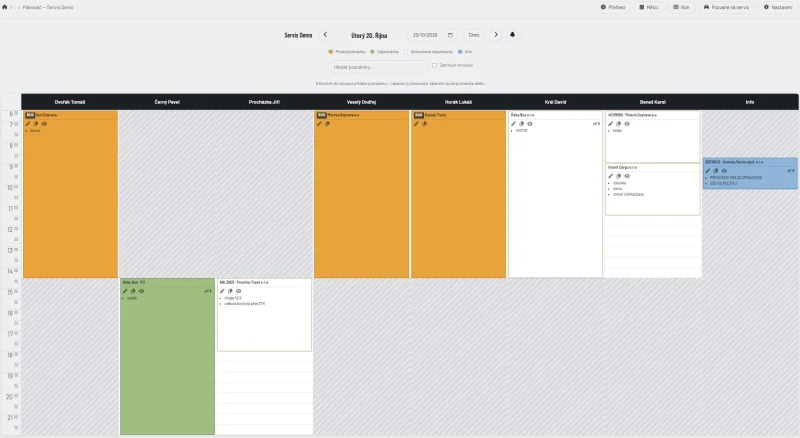
- The board uses the full screen width: one column per person (name), time down the left side.
- Each note (card) shows at the top: SPZ · company · číslo zakázky (order no.) · note types. A bus job shows a dark BUS tag first. If the bus has no SPZ, the tag takes the SPZ's place.
- 📱 On a phone, a picker above the board lets you choose Vše (everyone) or one name. Pick a name and you see only that person's column, across the whole screen. The phone remembers your choice for each planner. On a computer the board always shows everyone.
- Under that line is a row of small icons:
- ✏️ Upravit (edit) — opens the note popup.
- 📋 Kopírovat (copy) — copies the note to another day / person / time.
- 👁 Zobrazit (show) — expands the note to show the full task list, contact and comment. Click again to collapse.
- Which icons you see depends on your role (see Roles).
- 🟥 A note with a red outline is outside that person's working hours. This happens when their hours, shift or rotation changed, or a Dovolená was added, after the note was placed. Hovering shows “Tento čas je mimo pracovní dobu pro tento den”. Drag the note into a working time, or open it (✏️) and delete it. Blue info notes are never outlined.
- 🔔 The bell next to the date arrows (owner, Správce, Editor) shows notifications from mechanics; see Notifications.
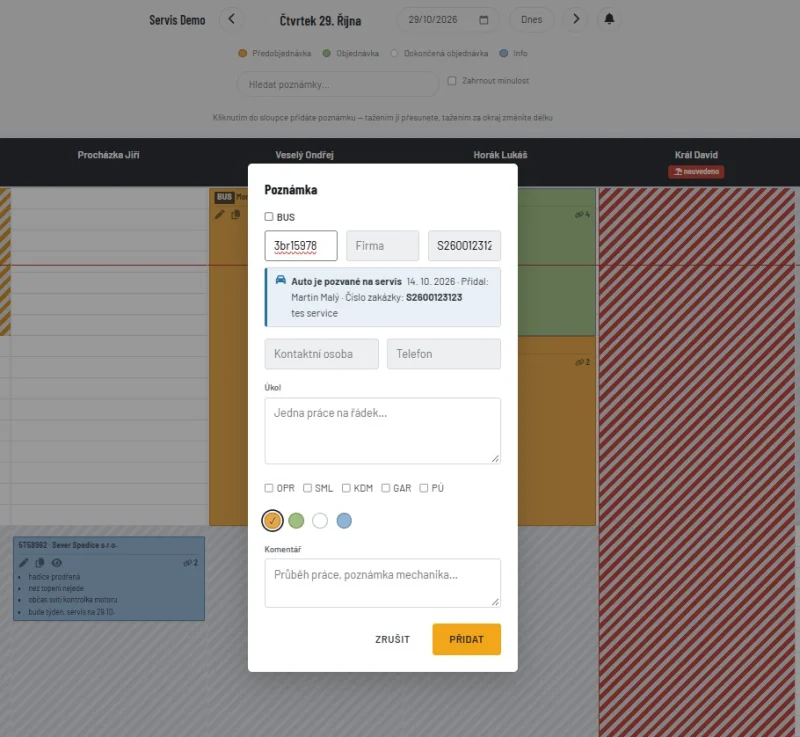
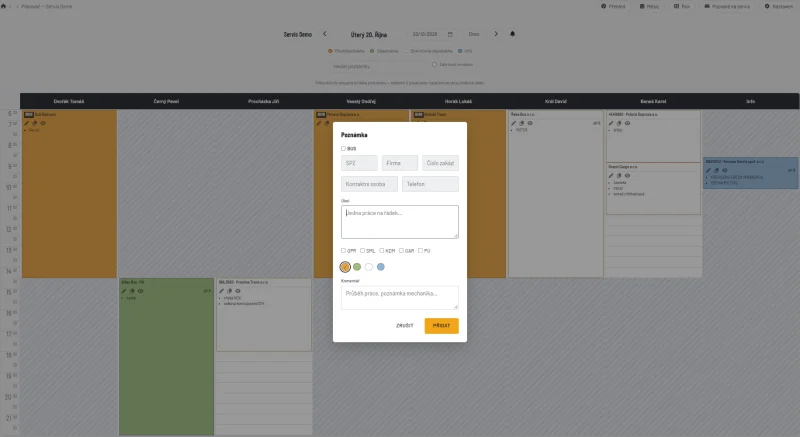
Note popup — fields
| Field |
Meaning |
| BUS |
Checkbox above SPZ. Tick it for a bus. The card shows a dark BUS tag, in place of the SPZ when there is none. Searching for “bus” finds all BUS notes. |
| SPZ |
Licence plate |
| Firma (company) |
Customer company. As you type, matching companies from the list appear below the field; capitals and diacritics don't matter. Click one, or use ↑/↓ and Enter. A new company is added to the list when you save. If the company is tagged Problémová firma ❗ or Pozor ⚠️, a warning with the tag and company note appears under the field. See Company list. |
| Číslo zakázky |
Order / preorder number |
| Kontaktní osoba (contact person) |
Customer contact. Shown only after clicking 👁. |
| Telefon (phone) |
Contact phone. Shown only after clicking 👁; on a phone you can tap it to call. |
| Úkol (task) |
What should be done. One job per line; each line shows as a bullet on the card. |
| Komentář (comment) |
Progress / mechanic's note. Shown only in the popup and after clicking 👁. |
| Typy (note types) |
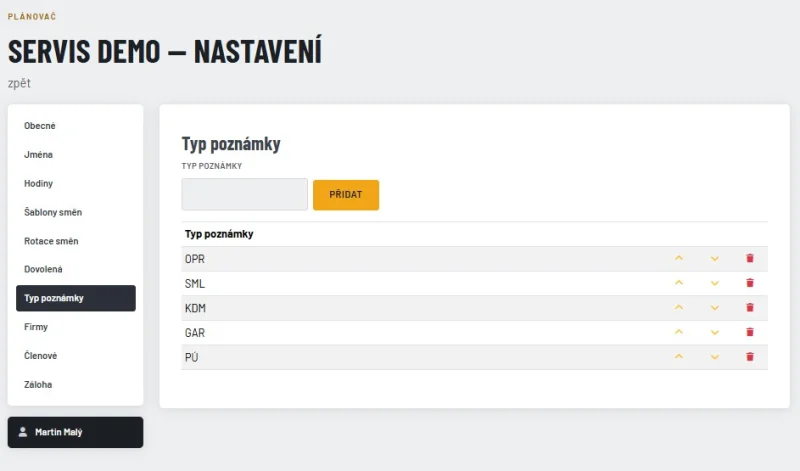
Tags configured in Settings |
| Barva (color) |
Status: orange = preorder / car not here, green = order / car here, white = finished, blue = info |
At least one of Úkol, SPZ or Firma must be filled, or BUS ticked.
BUS is copied too when you copy a note. For a Mechanik copy it stays locked, like SPZ.
One job over several days (Pokračování)
When a car is worked on for several days, copy its note to the other days as a continuation. The notes then belong to one job.
- 📋 Kopírovat has a Pokračování checkbox, ticked by default. Leave it ticked for the same job. Untick it for an ordinary copy, e.g. the same kind of job for another car. The copy keeps the color of the note it was copied from.
- Notes in a job show 🔗 and the number of notes in the job, at the right end of the icon row. Hover over it to see the text. Search results show the same 🔗 badge.
- When any note of the job turns white (finished), all notes of the job turn white. If you switch it back from white (e.g. clicked by mistake), the others switch back too. Other color changes, e.g. orange → green, change only that one note.
- SPZ, BUS, Firma and číslo zakázky are the same on all notes of the job. Change them on one note and all notes change. Úkol (task) and Komentář stay separate for each day.
- To take one note out of the job, open it (✏️) and untick Pokračování. The other notes stay linked.
- Deleting a note doesn't change the other notes of the job.
- A Mechanik can also copy as a continuation. When a mechanic switches green ↔ white, the whole job changes, and the notification says how many other notes changed too.
Month view (Měsíc)
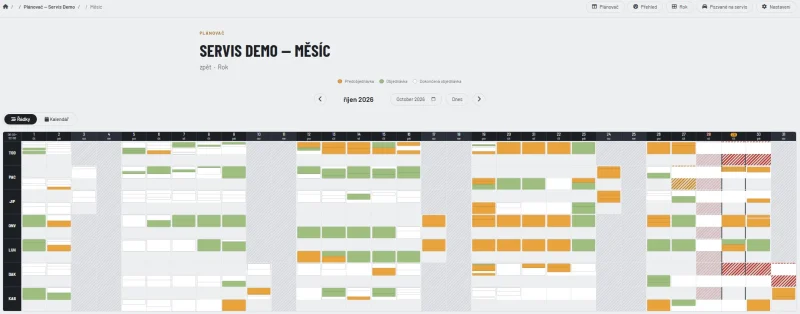
Two layouts. Switch between them with the buttons under the month name.
Řádky (rows) — default
- One row per person, one column per day. A row is labelled with the person's short code (Zkratka), e.g. MAK = Kučera Martin. Hover over it to see the full name.
- Each box is that person's day squeezed top to bottom: the top is the earliest hour and the bottom the latest. The time range is shown in the top-left corner.
- White = working time.
- Colored blocks = notes (orange / green / white), placed at their time.
- Grey hatching = day off. Red hatching = Dovolená. Light pink = Státní svátek.
- Hover over a box or a block for details: name, date, the note's time, SPZ, company and task. Click a box to open that day's board.
- The month view uses the full screen width, like the day board, so the day columns are as wide as possible.
- On a phone, swipe the table sideways. The codes column stays in place.
Kalendář (calendar)
- One box per day. Small colored dots show how many notes of each color the day has: orange = preorder, green = order, white = finished.
- Click a day to open that day's board.
In both layouts Info notes (blue) are not shown or counted; they are only on the day board. A column switched off for statistics in Settings → Jména (e.g. Info, only a place for notes) is left out too, also in the year view. The arrows, the month picker and Dnes (today) move between months.
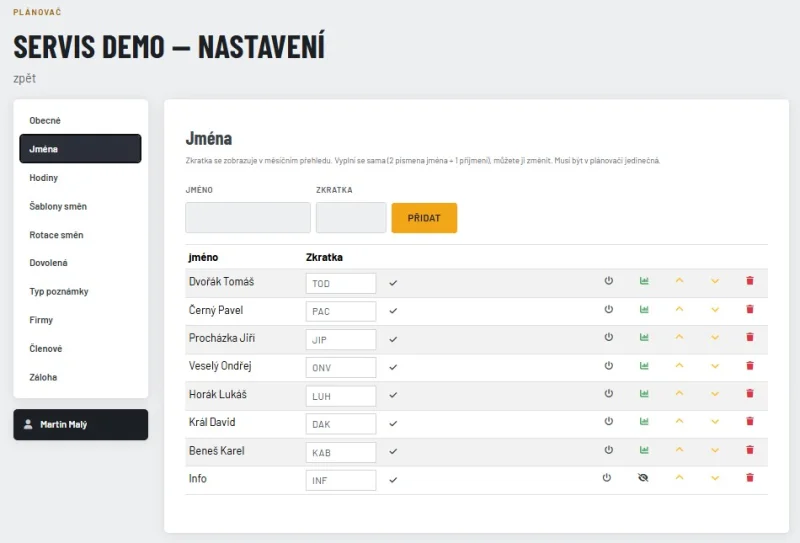
Short codes are set in Settings → Jména. When you type a new name, the code fills in by itself: 2 letters of the first name + 1 of the surname. You can change it before you click Přidat. To change an existing code, edit it in the table and click ✓. Each code must be unique in the planner.
Year view (Rok)
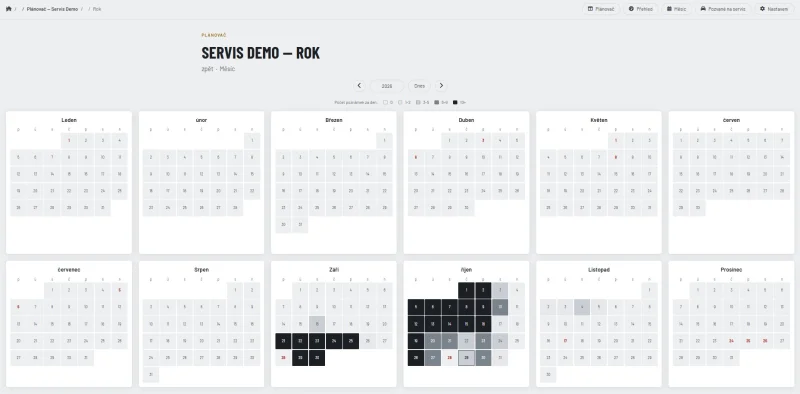
- Each day is colored by how many notes it has. The legend above the calendar ("Počet poznámek za den") shows 0 / 1–2 / 3–5 / 6–9 / 10+. Darker = busier.
- Info notes (blue) are not counted, nor are notes in a column switched off for statistics (e.g. Info).
- Click a day to open that day's board. Click a month name to open the month view.
- The year view uses the full screen width too. A wide screen shows two rows of 6 months; a narrower one shows fewer months per row.
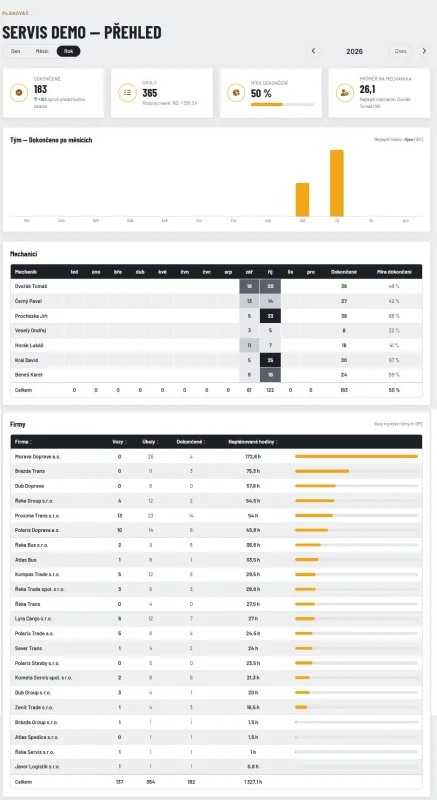
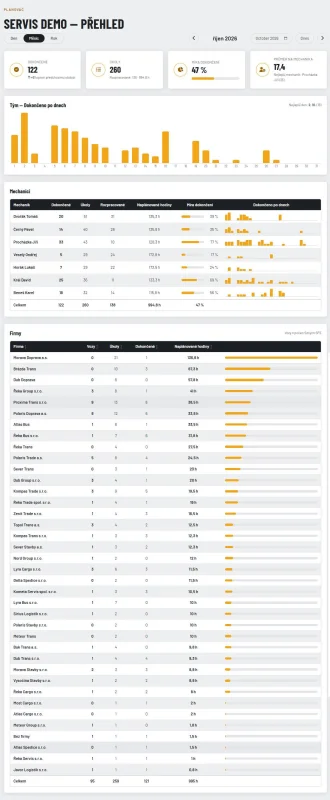
Overview → Companies (Přehled → Firmy)
- The Firmy table lists every company with its cars (Vozy), tasks (Úkoly), finished tasks (Dokončené) and planned hours (Naplánované hodiny).
- Click a column heading to sort by it. Numbers start with the biggest first, and companies go A→Z. Click the same heading again to reverse.
- The arrow next to a heading shows the current order. The Celkem (total) row always stays at the bottom.
Working hours (Hodiny) — permanent and temporary
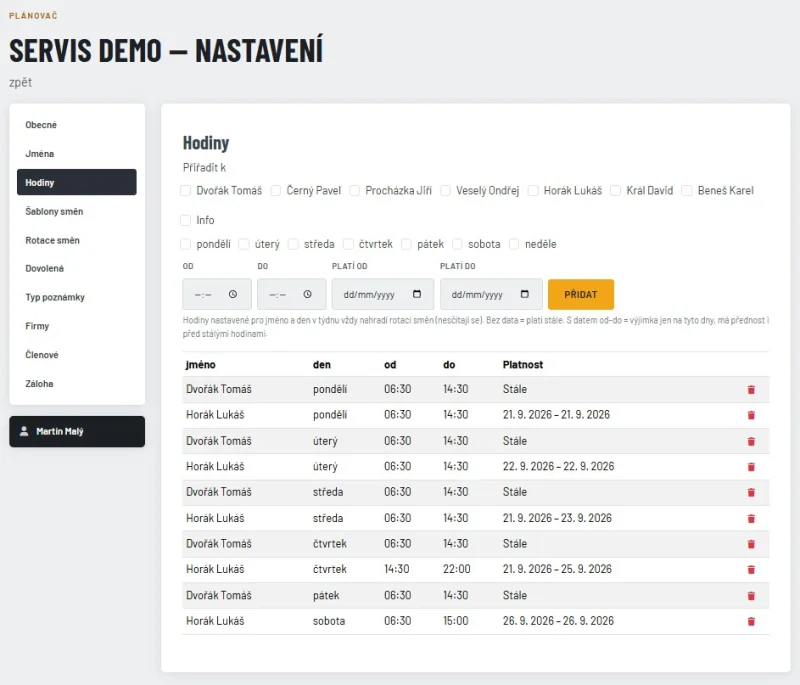
Settings → Hodiny. Pick name(s), day(s) of the week and the Od / Do time.
- Platí od / Platí do empty → permanent hours. They apply every such weekday and replace the person's shift rotation (Rotace směn) on that weekday — they are not added to it. Other weekdays still follow the rotation.
- Platí od / Platí do filled → a temporary exception (e.g. one week on a different shift). On the chosen weekdays within those dates, these hours replace the rotation and the permanent hours of that person. Other weekdays are not affected. After "Platí do" everything goes back to normal automatically.
- Fill in both dates, or neither.
- The table column Platnost shows the date range, or "Stále" (always).
Example: Anna is on the afternoon rotation, but next week Mon–Fri she works 6:00–14:00. Add hours for Anna, Po–Pá, 6:00–14:00, Platí od next Monday, Platí do next Friday.
Example (one day): Honza is on the morning rotation, but on Friday 30. 10. he works the afternoon. Add hours for Honza, day Pá, 14:30–22:00, Platí od 30. 10., Platí do 30. 10. Without the dates he would work the afternoon every Friday.
Shift schedules (Šablony směn) and Rotace směn
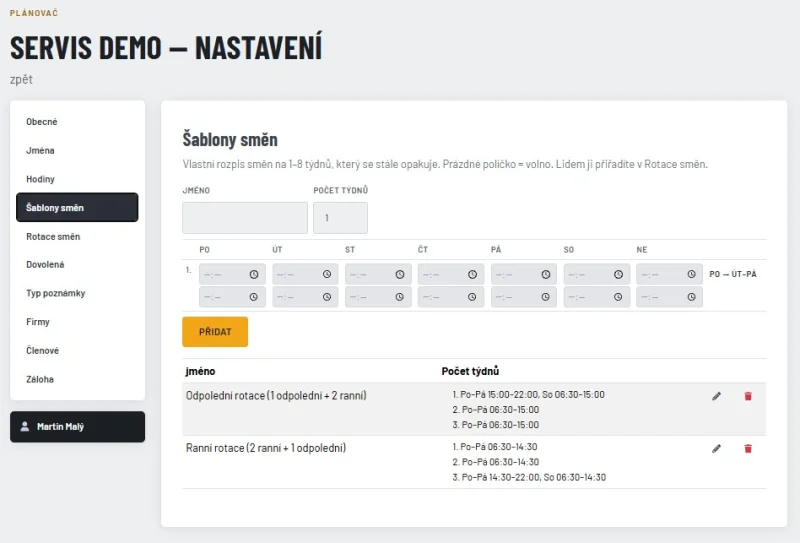
Two steps: 1) describe the pattern once as a šablona (template), 2) assign it to people with a start date in Rotace směn. The board then works out each person's hours for any day by itself — no re-typing every week.
1. Šablona směn (Settings → Šablony směn)
- Jméno — any name, e.g. "Krátký pátek".
- Počet týdnů — how many weeks until the pattern repeats (1–8). The table gets one row per week (1., 2., …), columns Po–Ne.
- Each day has two times: from (top) and to (bottom).
- Both empty = volno (day off, grey on the board).
- Both filled = working hours. "To" must be later than "from" (no overnight shifts).
- Po → Út–Pá at the end of a row copies Monday's times to Tuesday–Friday of that week — fill Monday, click, then change only the days that differ.
- Přidat saves. The list below shows each šablona week by week, e.g.
1. Po–Pá 14:30–22:00, So 06:30–14:30.
- ✏️ (pencil) loads a šablona back into the form → change → Uložit (or Zrušit). Changes apply at once to everyone who uses it.
- 🗑 (trash) deletes — not possible while someone still has it in Rotace směn (remove those rows first).
Ready-made in every planner (you can edit them):
- Ranní rotace (2 ranní + 1 odpolední) — weeks 1–2 morning Po–Pá 06:30–14:30, Sat off; week 3 afternoon Po–Pá 14:30–22:00 + Sat morning 06:30–14:30.
- Odpolední rotace (1 odpolední + 2 ranní) — the same, but starting with the afternoon week.
- Sunday is off in both.
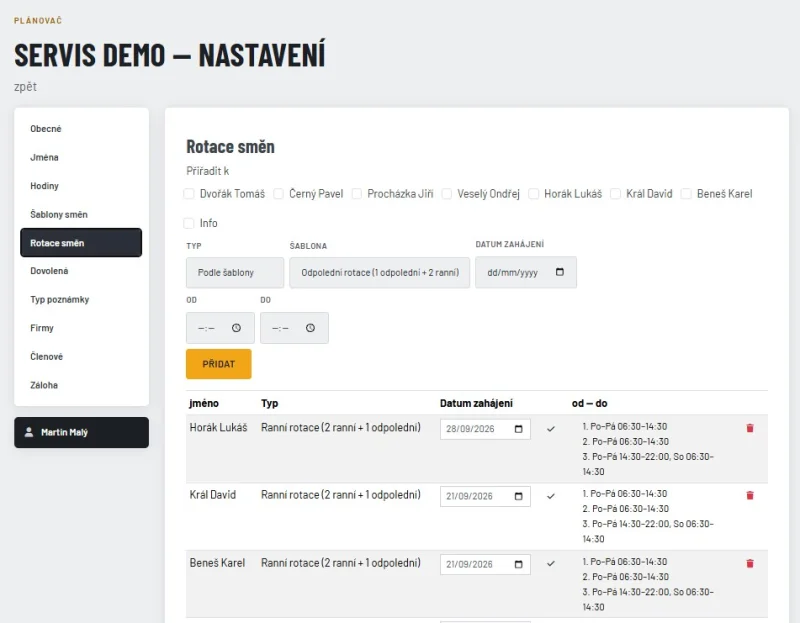
2. Assigning it (Settings → Rotace směn)
- Tick the people under Přiřadit k.
- Typ = Podle šablony, then pick the Šablona.
- Datum zahájení = any day in the week that should be week 1 of the šablona (weeks run Monday–Sunday). From then on the weeks repeat: 1, 2, 3, 1, 2, 3, …
- Přidat.
- Typ Pevná (bez rotace) = one fixed time Mon–Sat, Sunday off (no šablona needed).
Changing someone later: just add a new row with a later Datum zahájení — the old one applies until that date, the new one from that date. Don't delete the old row (the past would lose its hours).
Wrong Datum zahájení? Change the date directly in the list (column Datum zahájení) and click ✓ — the whole cycle moves. No need to delete the row and add it again.
What wins on a given day: Dovolená (holiday) → Hodiny with Platí od/do → Hodiny without dates → Rotace směn. Hodiny always replace the rotation on their weekday, they are never added to it.
Examples
A) Two mechanics who alternate (ready-made šablony). Petr and Jana; the week of 5. 10. 2026 Petr should be on afternoons.
- Rotace směn: Petr → Podle šablony → Odpolední rotace, Datum zahájení 5. 10. 2026.
- Rotace směn: Jana → Podle šablony → Ranní rotace, Datum zahájení 5. 10. 2026.
| Week of |
Petr |
Jana |
| 5. 10. |
afternoon + Sat morning |
morning, Sat off |
| 12. 10. |
morning, Sat off |
morning, Sat off |
| 19. 10. |
morning, Sat off |
afternoon + Sat morning |
| 26. 10. |
afternoon + Sat morning (repeats) |
morning, Sat off |
B) Your own pattern — "Krátký pátek", 2 weeks.
- Šablony směn: Jméno Krátký pátek, Počet týdnů 2.
- Row 1.: Po 07:00–15:30 → click Po → Út–Pá → change Pá to 07:00–13:00. So, Ne empty.
- Row 2.: Po 07:00–15:30 → Po → Út–Pá. So 08:00–12:00. Ne empty.
- Přidat → the list shows
1. Po–Čt 07:00–15:30, Pá 07:00–13:00 / 2. Po–Pá 07:00–15:30, So 08:00–12:00.
- Rotace směn: tick Tomáš → Podle šablony → Krátký pátek, Datum zahájení = Monday of the week that is his "short Friday" week.
C) Joining an existing rotation in the middle. New mechanic Karel starts on 19. 10. and should work the same weeks as Jana (example A) — that week Jana is on afternoons. Pick the šablona whose week 1 is what Karel works in his first week: Odpolední rotace, Datum zahájení 19. 10. → afternoon 19. 10., morning 26. 10. and 2. 11., afternoon again 9. 11. — same as Jana.
D) One week differently. Jana swaps to mornings for the week of 19. 10. only → don't touch the šablona; add Hodiny for Jana, Po–Pá 06:30–14:30, Platí od 19. 10., Platí do 24. 10. (see Working hours). After that week the rotation continues normally.
Holidays / absence (Dovolená)
- Settings → Dovolená: pick name(s), the from–to date, the Typ nepřítomnosti (absence type: Dovolená, Nemoc, Školení, Lékař…) and optionally a Poznámka.
- Čas od / Čas do (time from / to) — optional:
- Empty → the whole day off. The person's column is blocked all day, hatched in the type's color.
- Filled → away only in that time, e.g. Lékař 8:00–10:00. Only that window is blocked (colored stripes with the type name); the person works the rest of the shift and you can plan notes before and after it.
- For a range of several days the same time applies every day (e.g. Školení every afternoon of the week).
- No notes can be placed in blocked time, except blue info notes. Notes that were already there get the red "out of shift" outline and can be dragged elsewhere.
- The column header shows a label in the type's color with the note (or the type name) and, for a part-day absence, the time. Hovering over the blocked area shows it too.
- Month view (Řádky): a whole-day absence hatches the day in the type's color; a part-day absence is a small colored bar over its time.
- The table lists every absence with its type, dates and time ("Celý den" = whole day).
Typy nepřítomnosti (absence types) — owner, Správce, Editor
- Under the list in Settings → Dovolená. Every planner starts with Dovolená (red), Nemoc (purple), Školení (blue) and Lékař (orange).
- Add a type: name + color, then Přidat. Change the name or color in the row and click Uložit.
- Deleting a type keeps the absences, they are just shown without a type (red).
Public holidays (Státní svátky)
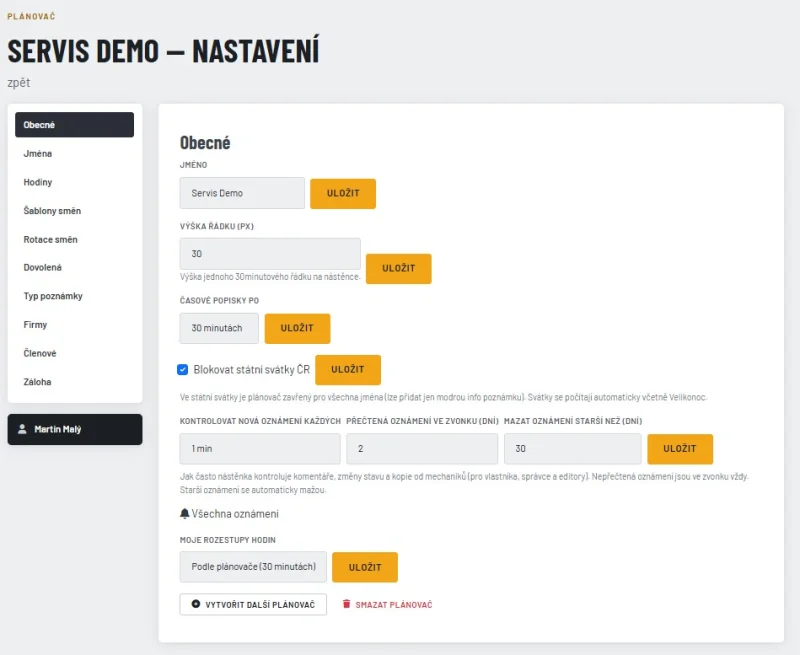
- Settings → Obecné: tick Blokovat státní svátky ČR and click Uložit. (Owner, Správce and Editor only.)
- All Czech public holidays are then closed for everyone. You don't need to enter them anywhere; they are calculated automatically every year, including Easter (Velký pátek, Velikonoční pondělí).
- Day board: a red line "Státní svátek: …" above the board, and all columns with light pink hatching. It is softer than the strong red of a person's own Dovolená, so you can tell the two apart. Only a blue info note can be added.
- Month view: in Řádky the day number in the header is pink and the whole day is light pink; in Kalendář the day number is red, with the holiday name. Year view: the day number is red and underlined; hovering shows the name.
- Untick to switch it off (e.g. if the workshop is open on holidays).
- Blocked holidays: 1.1., Velký pátek, Velikonoční pondělí, 1.5., 8.5., 5.7., 6.7., 28.9., 28.10., 17.11., 24.12., 25.12., 26.12.
Settings (Nastavení) — tabs
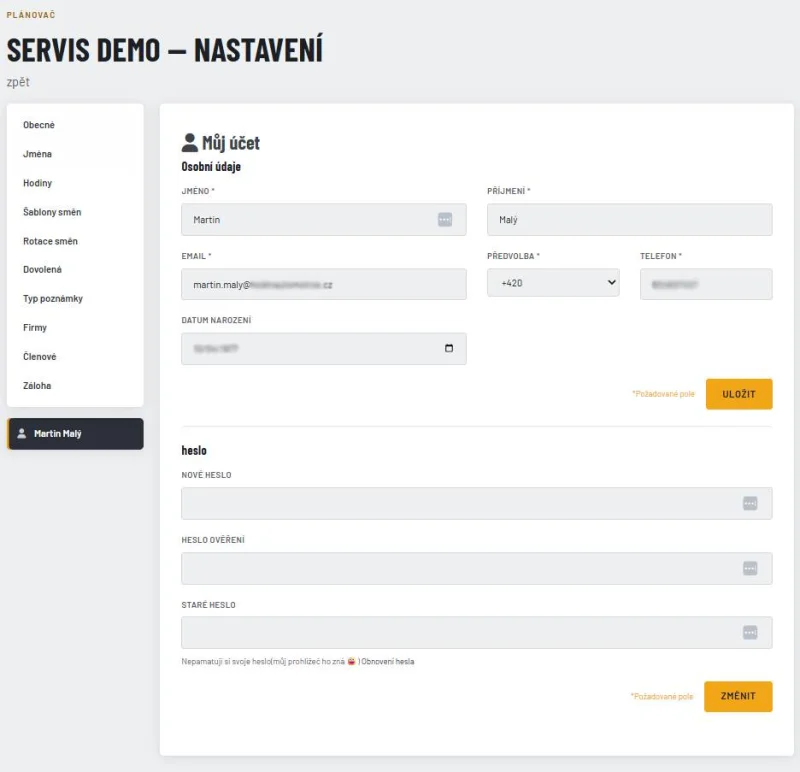
- Settings is split into tabs: Obecné, Jména, Hodiny, Šablony směn, Rotace směn, Dovolená, Typy poznámek, Firmy, Členové, Záloha, and, in a separate dark box under the menu, Můj účet (👤 your name). Click a tab to see only that part. Which tabs you see depends on your role.
- After you save a form you stay on the same tab. If something you entered is wrong, the tab with the error opens.
- On a phone the tabs are one row; swipe it sideways to see the rest.
- Each tab has its own link (e.g. …/settings#settings-holidays) that you can bookmark or send.
- Obecné: the Vytvořit plánovač button (create planner) is here, below the planner settings, for every role. Once you own a planner it says Vytvořit další plánovač (create another planner). It is no longer in the top menu of the board.
- Jména: the ↑ / ↓ arrows move a name one place up or down — this is the order of the columns on the board. A new name is added at the bottom.
Company list (Nastavení → Firmy) — owner, Správce
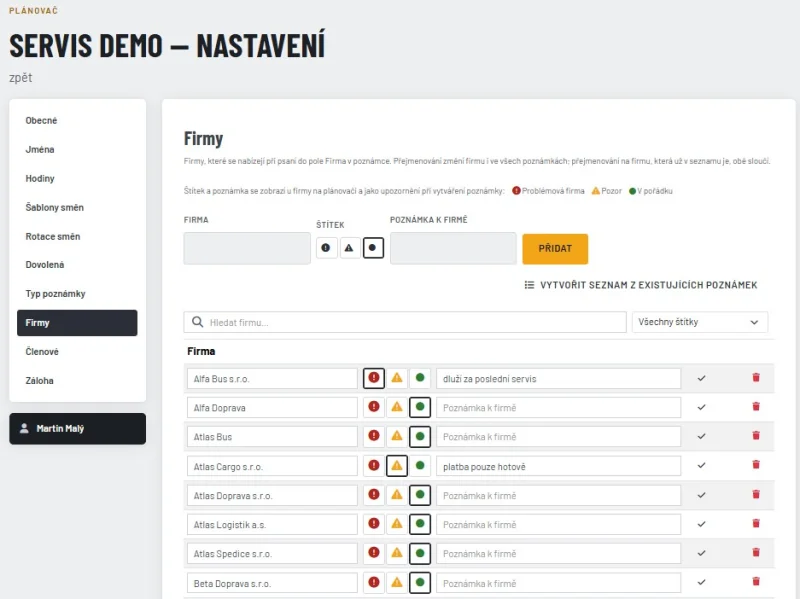
- One list of companies per planner. It keeps each company spelled the same way, so Přehled → Firmy doesn't count “Škoda Auto” and “skoda auto” as two companies.
- When a note is saved, a company already in the list is stored with the list's spelling. A new company is added to the list automatically.
- Přidat (add): adds a company by hand.
- Rename: change the name in the table and click ✓. All notes with that company change too. If you rename it to a company that is already in the list, the two are merged into one.
- 🗑 removes a company from the list only. Notes keep their text.
- Vytvořit seznam z existujících poznámek (build list from existing notes): fills the list from all notes in the planner and unifies different spellings of the same company. Use it once after the update; it's safe to click again.
- Štítek (tag): pick one of three icons for each company and click ✓:
- ❗ red exclamation mark – Problémová firma (problem company, e.g. doesn't pay, causes trouble),
- ⚠️ yellow triangle – Pozor (caution),
- 🟢 green dot – V pořádku (OK; the default for every company, including new ones added from notes).
- Poznámka k firmě (company note): a short text about the company (e.g. “Pay in advance”). Saved together with the tag when you click ✓.
- On the day board, only the red ❗ or yellow ⚠️ icon is shown before the company name on a note; hover the icon to see the company note. Green is not shown – if the company has a note, only a grey ⓘ icon appears.
- When creating, editing or copying a note, a colored warning with the tag and company note appears under the Firma field as soon as the company matches a tagged one. The icons are also shown in the company suggestions under the field.
- Hledat firmu… (search company): above the table, searches company names and company notes (capitals and diacritics don't matter). Next to it is a tag filter (Všechny štítky / Problémová firma / Pozor / V pořádku) and the number found out of the total. The search stays after you save a company; clear it to see all companies again.
- Tags and company notes are also kept in backups.
My account (Nastavení → Můj účet) — everyone
- Under the Settings menu, in its own dark box, are 👤 and your name. It opens Můj účet (my account). Every role sees it.
- Osobní údaje (personal details): jméno, příjmení, e-mail, předvolba + telefon and datum narození. Click Uložit to save. (The newsletter consent is only in the customer account; saving here doesn't change it.)
- Heslo (password): enter the new password twice and your current password, then click Změnit. Forgot your current password? Use the “Obnovení hesla” link under the field.
- These are the same details as in the customer account. A change in one place shows in the other. After saving you stay on this tab.
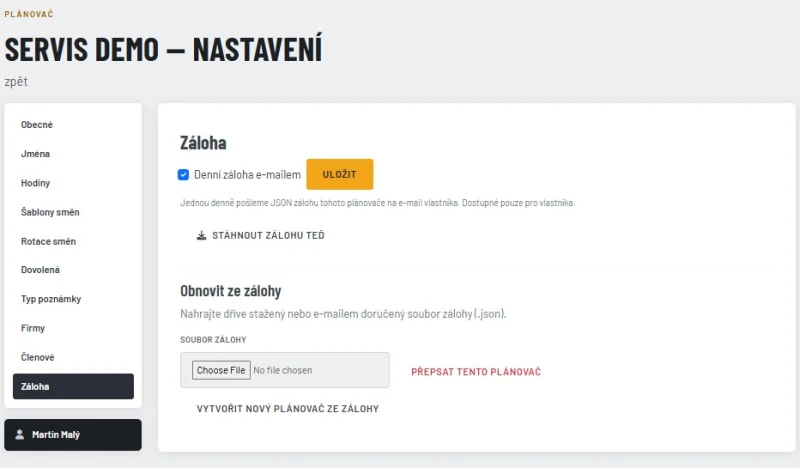
Backup (Záloha) — owner, Správce, Editor
- Settings → Záloha tab.
- Denní záloha e-mailem (daily backup by e-mail): only the owner sees this switch. When it's on, the owner gets an e-mail once a day with a backup file of the whole planner attached.
- Stáhnout zálohu teď (download backup now): downloads a backup file right away.
- A backup contains names, hours, shift schedules, shift rotations, holidays, note types, the company list and every note (with Úkol, Komentář, contact and BUS). It does not contain who the planner is shared with (Členové). After restoring into a new planner, sharing has to be set up again by hand.
- Obnovit ze zálohy (restore from backup): upload a backup file (downloaded, or from the daily e-mail), then choose one of:
- Přepsat tento plánovač (overwrite this planner): replaces everything in the current planner with the backup. It asks you to confirm first, and it can't be undone.
- Vytvořit nový plánovač ze zálohy (new planner from backup): creates a new planner from the backup and leaves the current one untouched. You become its owner.
My hour spacing (Moje rozestupy hodin)
- Settings → Obecné: choose 30 min or 1 hour for your own view of the board. Nobody else is affected.
- "Podle plánovače" = use the planner's default (set by Správce / Editor in "Časové popisky po").
- The time column on the left of the board: big hour number, minutes (00 / 30) small next to it. Full line between hours, short line at half past. Point at a minute to see the exact time.
Roles (Role)
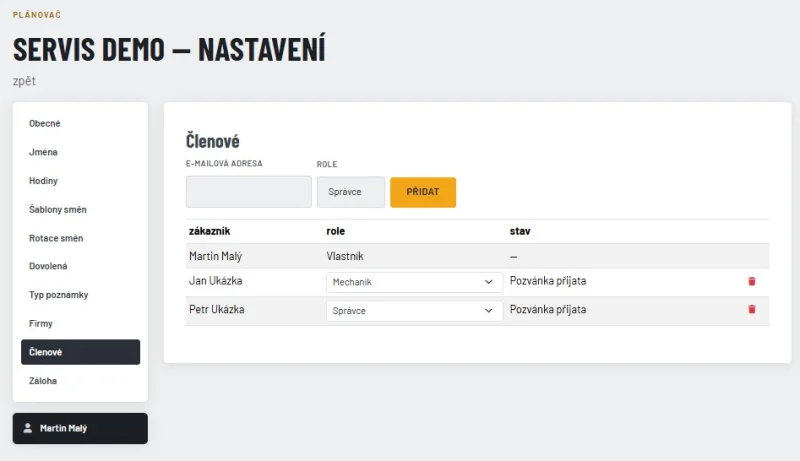
Roles are set by the owner or Správce in Settings → Členové (members).
| |
Vlastník |
Správce |
Editor |
Mechanik |
Prohlížející |
| Rename planner, Jména (names), Firmy (company list), Členové (members) |
✓ |
✓ |
– |
– |
– |
| Other Settings (hours, shift rotation, note types, row height, planner hour spacing), Statistiky |
✓ |
✓ |
✓ |
– |
– |
| Add holiday |
✓ |
✓ |
✓ |
✓ |
– |
| Delete holiday |
✓ |
✓ |
✓ |
– |
– |
| Create / move / resize / delete notes (own) |
✓ |
✓ |
✓ |
– |
– |
| Copy a note |
✓ |
✓ |
✓ |
date + time only |
– |
| Komentář + green ↔ white on any note |
✓ |
✓ |
✓ |
✓ |
– |
| My hour spacing (Moje rozestupy hodin), Můj účet (own details + password) |
✓ |
✓ |
✓ |
✓ |
✓ |
| View board, month, year, search, 👁 |
✓ |
✓ |
✓ |
✓ |
✓ |
| 🔔 Notifications from mechanics (Oznámení) |
✓ |
✓ |
✓ |
– |
– |
| Notification settings (check interval, days in the bell, deleting) |
✓ |
✓ |
– |
– |
– |
Sharing a planner (Členové)
- Owner or Správce: Settings → Členové. Enter the person's email and role. The person must already have an account (Registrace on the homepage). The status shows Čeká na vyřízení (pending) until they respond. No email is sent.
- Invited person without any planner of their own: just log in. The shared planner opens automatically and the invite is accepted. No need to create a planner; they can still create one later with Vytvořit plánovač in Settings → Obecné.
- Invited person who already has a planner: accept or decline the invite on the account page.
Only the Vlastník (owner) can delete the planner.
Mechanic (Mechanik) — how to work
A mechanic CAN
- see the whole board, the month and year views, search, and open 👁 on any note (task, contact, comment)
- write or change the Komentář (work progress) on any note
- switch a note green (order) ↔ white (finished), e.g. to mark a job done or reopen it
- copy a note to another day / time (e.g. the car comes back tomorrow); only the date and time can be chosen
- add a holiday / absence (Dovolená) with a note, e.g. a doctor's visit
- set their own hour spacing (Moje rozestupy hodin), which changes only their own view
A mechanic CANNOT
- create a new note, drag (move) or resize a note, or delete a note
- change the task (Úkol), SPZ, company, číslo zakázky, contact or note types
- change the color to or from orange or blue, or recolor an orange / blue note
- choose a different person (column) when copying
- delete a holiday, change hours / shift rotation / note types / names / members, or see Statistiky
Step by step
- The board shows a hint: use the pencil to edit the comment and switch green ↔ white.
- You can't click on the board to add a note, and you can't drag notes.
- ✏️ opens the note. Everything is greyed out except Komentář and the green / white color. Green (order) ↔ white (finished) can be switched; the other colors are disabled.
- 📋 Copy: only the date and the from / to time can be set. Person (column), task, SPZ, company, číslo zakázky, contact and color are copied as they are. The copy lands in the same person's column.
- Settings shows only Dovolená (add only, can't delete), Moje rozestupy hodin and Můj účet.
- Your comment, green ↔ white switch and copy are sent as a notification to the owner, Správce and Editors (see Notifications).
Notifications (Oznámení) — owner, Správce, Editor
- When a Mechanik writes or changes a Komentář, switches green ↔ white, or copies a note, you get a notification.
- You also get one (Pozvané auto objednáno) when a car you put on the Pozvané na servis list gets a note.
- The 🔔 bell is next to the date arrows on the board. The red number shows how many are unread.
- Click the bell to see the list. Each entry shows the column name (person), what happened (Komentář / Změna stavu / Kopie poznámky) and how long ago; then the comment first, followed by Úkol, SPZ, firma, číslo zakázky, contact, date and time.
- Click an entry to open that day; the note blinks and the entry is marked as read. ✓ marks it read without opening. Označit vše jako přečtené marks everything read.
- New notifications also pop up in the bottom right corner (at most 3 at once, “+N dalších” for more), and the board refreshes by itself.
- If the same note is changed several times, you get one entry with the latest content until you read it.
- No email is sent; notifications are only in the planner.
- How often the board checks: Settings → Obecné → Kontrolovat nová oznámení každých (1–30 min, default 1 min). Only the owner or Správce can change it.
- The bell shows every unread notification (however old) plus read ones from the last few days (default 2). The owner or Správce sets the number of days in Settings → Obecné → Přečtená oznámení ve zvonku (dní).
- Notifications older than 30 days are deleted automatically, read or not. The owner or Správce can change this in Settings → Obecné → Mazat oznámení starší než (dní) (7–365; it can't be shorter than the bell setting).
- Zobrazit vše (show all) at the bottom of the bell, or the Všechna oznámení link in Settings → Obecné, opens a page with all notifications. You can search in the comment, task, SPZ, company and číslo zakázky (capitals and diacritics don't matter) and filter by type, person, read / unread and date. Clicking an entry opens the note just like in the bell; ✓ and Označit vše jako přečtené work there too.
Invited for service (Pozvané na servis)
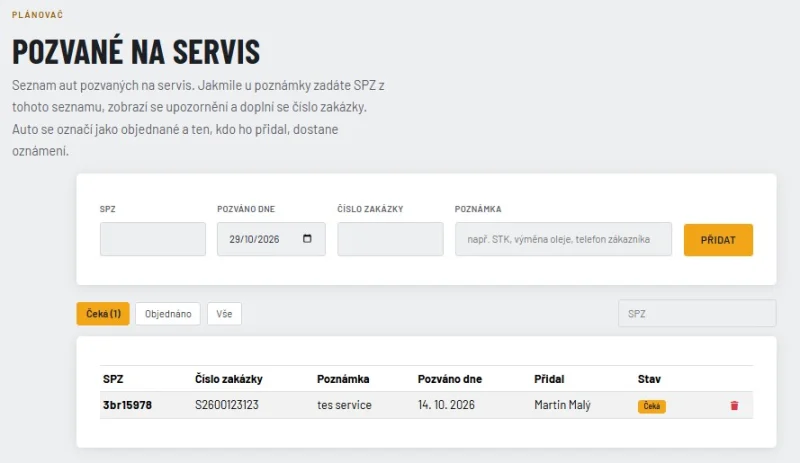
A list of cars you have invited for service (e.g. for STK or an oil change), so you know when they actually get booked.
- Open it with the 🚗 Pozvané na servis button in the top menu of any planner page. Everyone can see the list.
- Owner, Správce and Editor add a car: SPZ, Pozváno dne (invited on, today by default), optionally the Číslo zakázky (order number) and a Poznámka (e.g. "STK", "výměna oleje", the customer's phone), then Přidat.
- When you type that SPZ into a note (new note, edit or copy), a blue 🚗 notice This car was invited for service appears under the fields, with the invite date, who added it, the order number and the invite note. An empty Číslo zakázky field in the note is filled in from the invite automatically. This works for everyone, including the person who added the car.
- On the board, a note for an invited car shows a blue 🚗 before its SPZ (hover for the invite date and note), also after the car is booked.
- As soon as anyone creates, edits or copies a note with the same SPZ, the car switches from Čeká (waiting, amber) to Objednáno (booked, green). Spaces and capitals in the SPZ don't matter (1AB 2345 = 1ab2345).
- The person who added the car gets a 🔔 notification Pozvané auto objednáno with the note's details and the invite note. If you created the note yourself, you get no notification.
- Objednáno shows the date, time and person of the note — click it to open that day with the note highlighted.
- If the car already has a note planned (from the invite date on) when you add it, it is Objednáno straight away.
- Tabs Čeká (with the count) / Objednáno / Vše and a search by SPZ. The same SPZ can't wait on the list twice. 🗑 removes a car from the list.